LICENSE_KEYBuyer license key supplied after purchase.
Server-onlyFeature: coreSecret
A complete guide on how to obtain and configure every environment variable for your project. Browse all services with Custom, or choose your template for its exact requirements.
Prepare variables for the four supported templates, choose optional features, and generate secrets locally. For Custom, follow your project’s variable list and the service instructions below.
Custom is the complete service reference, not a list of mandatory variables. Use your purchase email and repository instructions to identify the services and names your project actually uses. Add values to the correct hosting environment. Never place server-only secrets in NEXT_PUBLIC_*, source control, screenshots, or chat.
Purchase activation values supplied with the template.
LICENSE_KEYBuyer license key supplied after purchase.
LICENSE_SERVER_URLLicense validation service origin supplied with the template.
LICENSE_SERVER_SECRETSeparate secret used to verify license and grace tokens locally.
LICENSE_PRODUCTLicense product identifier for this template.
LICENSE_KEY is your purchased key; LICENSE_PRODUCT identifies your product. Use the supplied server URL and server secret only where your project requires them.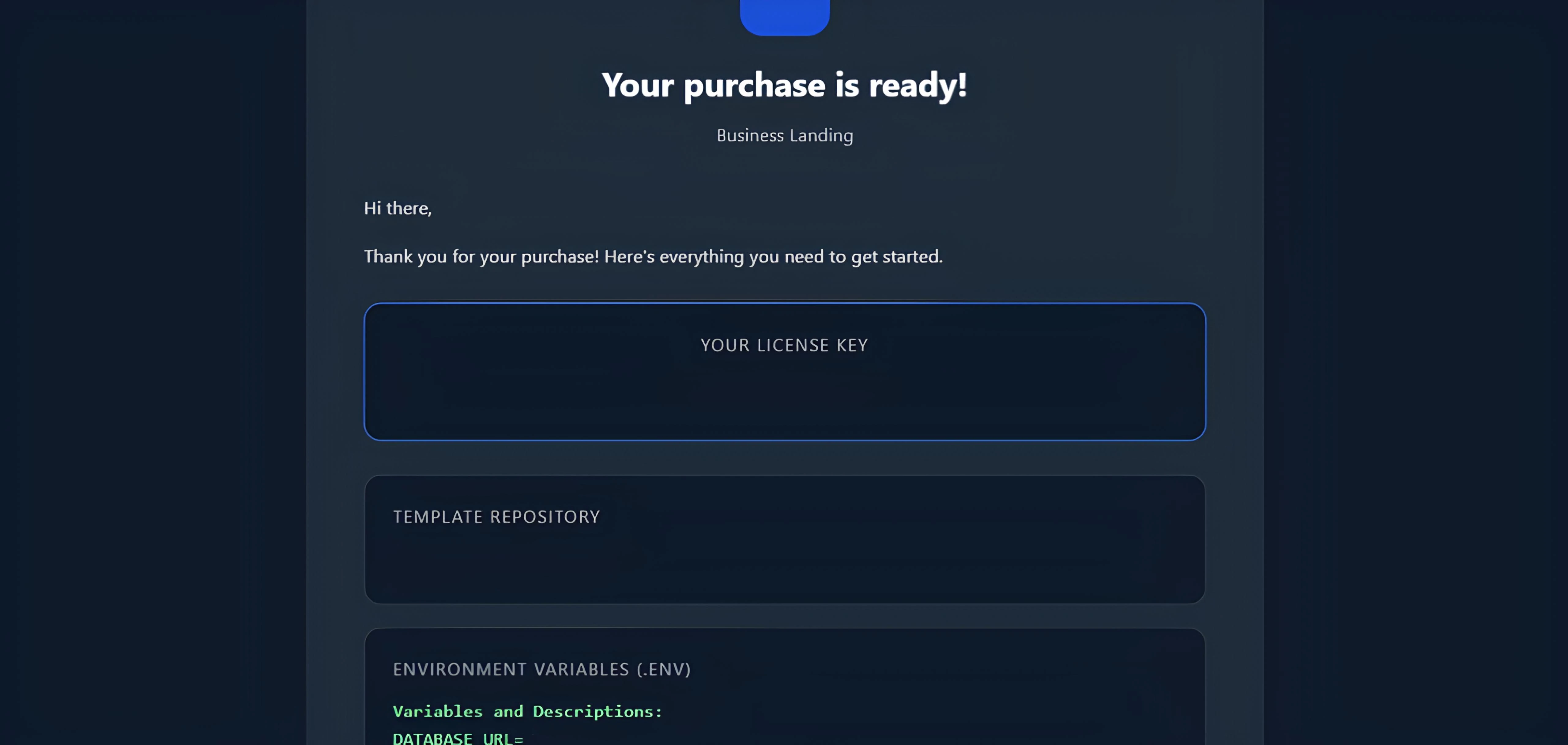
Screenshots restored from the original guide. Provider interfaces may change; use the written instructions and your selected project's variable names if an older screenshot differs. Never share real credentials in screenshots.
Pooled runtime and direct migration connections.
DATABASE_URLPooled PostgreSQL connection used by the application runtime.
DATABASE_URL_UNPOOLEDDirect connection to the same database, branch, and schema for Prisma migrations.
DIRECT_URLDirect connection to the same database, branch, and schema for Prisma migrations.
DATABASE_URL.DIRECT_URL or DATABASE_URL_UNPOOLED, according to your project. E-commerce uses the latter; Taxi and Business Landing use the former. Do not put a pooled URL in the direct field or create the direct URL by editing its hostname.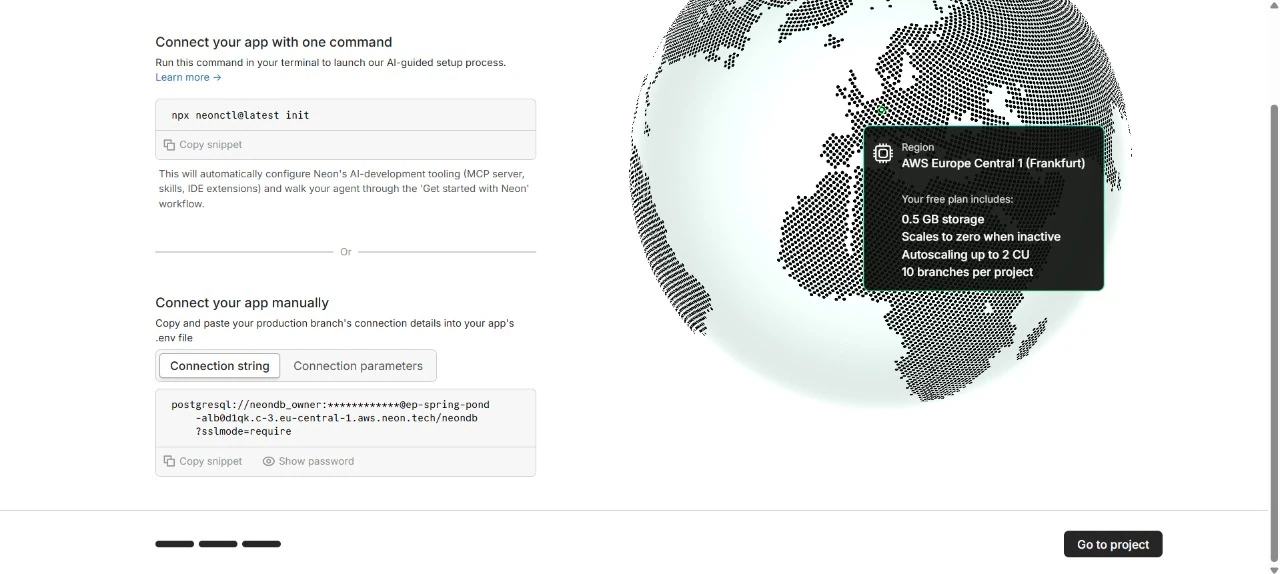
Screenshots restored from the original guide. Provider interfaces may change; use the written instructions and your selected project's variable names if an older screenshot differs. Never share real credentials in screenshots.
Session and application authentication secrets.
NEXTAUTH_SECRETNextAuth session signing secret; also the fallback guest-order token secret.
GUEST_ORDER_TOKEN_SECRETOptional independently rotatable guest-order access-token secret; falls back to NEXTAUTH_SECRET.
JWT_SECRETSecret used to sign admin session tokens.
openssl rand -base64 32 in your own terminal.NEXTAUTH_SECRET, JWT_SECRET, or another name explicitly used by your project. Do not ask a chatbot to create secrets, use a memorable phrase, or reuse the license-server secret.NEXTAUTH_URL, set it to the exact application origin as described in Site URLs, not to an API callback path.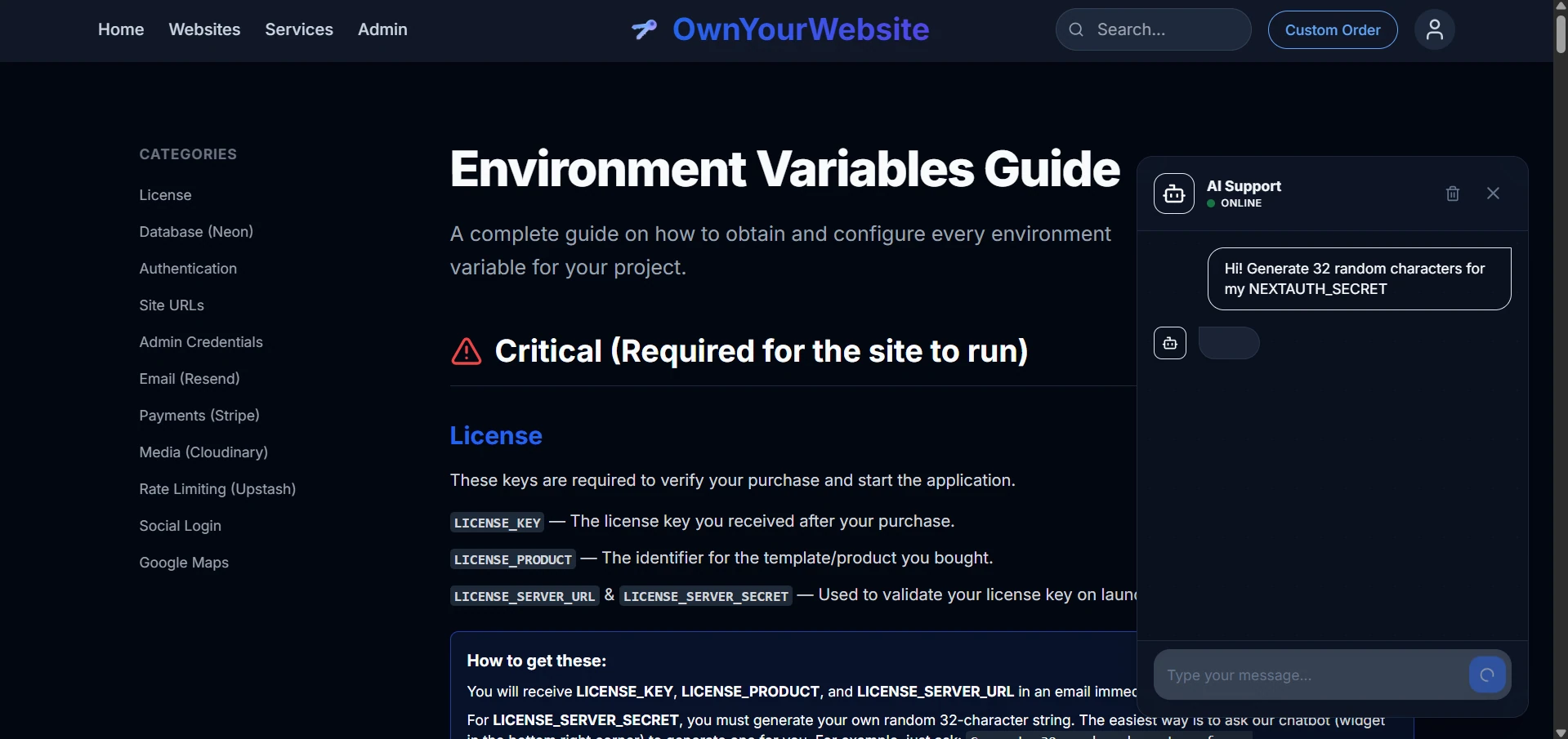
Screenshots restored from the original guide. Provider interfaces may change; use the written instructions and your selected project's variable names if an older screenshot differs. Never share real credentials in screenshots.
Canonical HTTPS origins for links, callbacks, and cookies.
NEXTAUTH_URLAuth framework origin generated from the buyer's canonical application origin.
NEXT_PUBLIC_APP_URLCanonical application origin used for Checkout and password-reset links.
NEXT_PUBLIC_SITE_URLTemporary compatibility alias used by SEO metadata; generate from NEXT_PUBLIC_APP_URL.
NEXT_PUBLIC_STORE_URLTemporary compatibility alias used by email links; generate from NEXT_PUBLIC_APP_URL.
http://localhost:3000. For a deployed site, copy its HTTPS address from your hosting project's domain settings.www if applicable. Set only the URL variables shown for your project. Several names may currently require the same origin; do not delete an existing variable just because its value is repeated.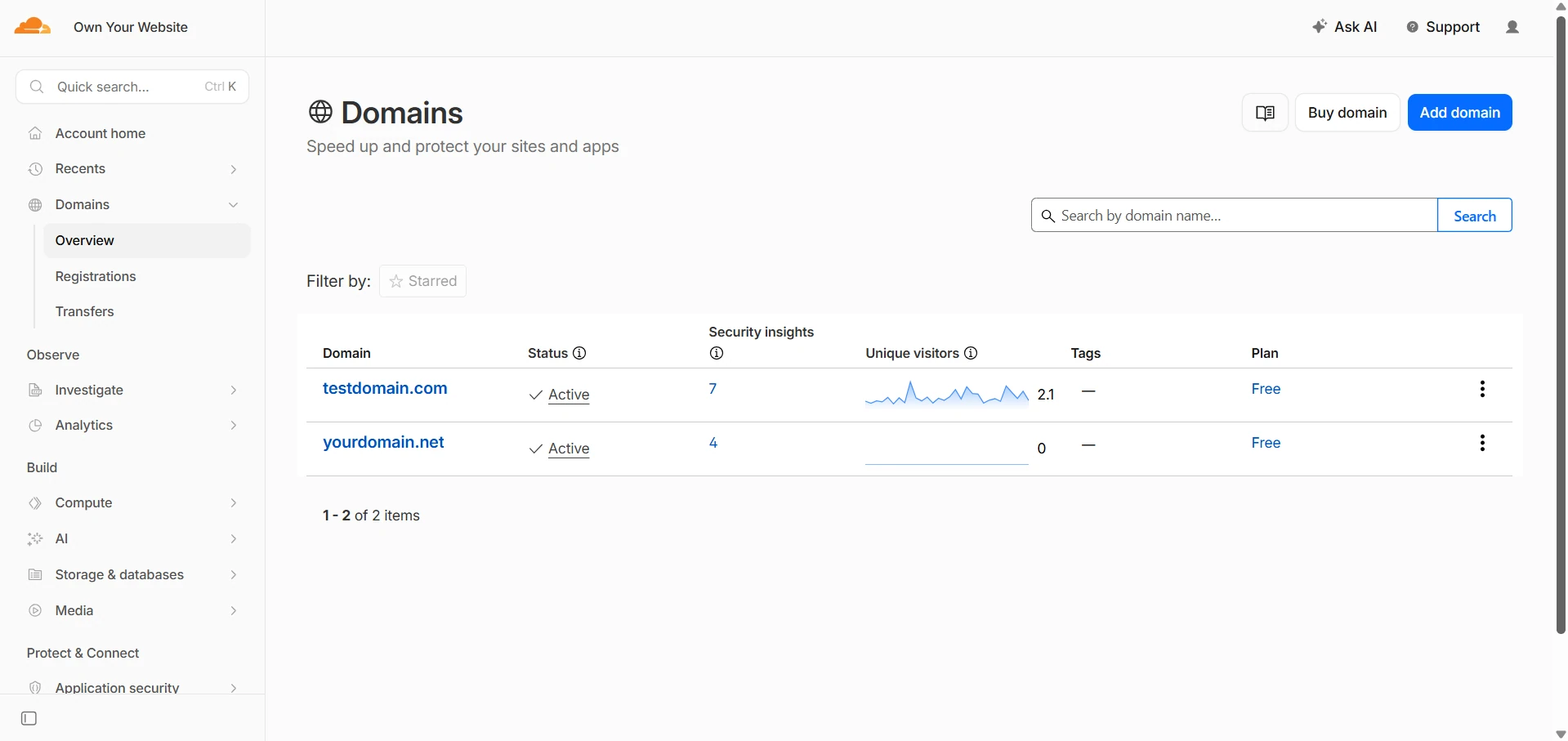
Screenshots restored from the original guide. Provider interfaces may change; use the written instructions and your selected project's variable names if an older screenshot differs. Never share real credentials in screenshots.
Template-specific administrator identity or access values.
ADMIN_EMAILAdmin identity and fallback recipient for operational store messages.
ADMIN_PASSWORDPassword protecting the landing-page admin panel.
ADMIN_EMAIL to the email you control and will use for your administrator account. For E-commerce, E-commerce Lite and Taxi, register or sign in with that exact address to receive administrator access; the setting identifies the admin but does not itself create a user or password.ADMIN_PASSWORD using a password manager or the local Env Builder. Store it securely, then add it to your hosting environment. Do not add this variable to templates that do not consume it.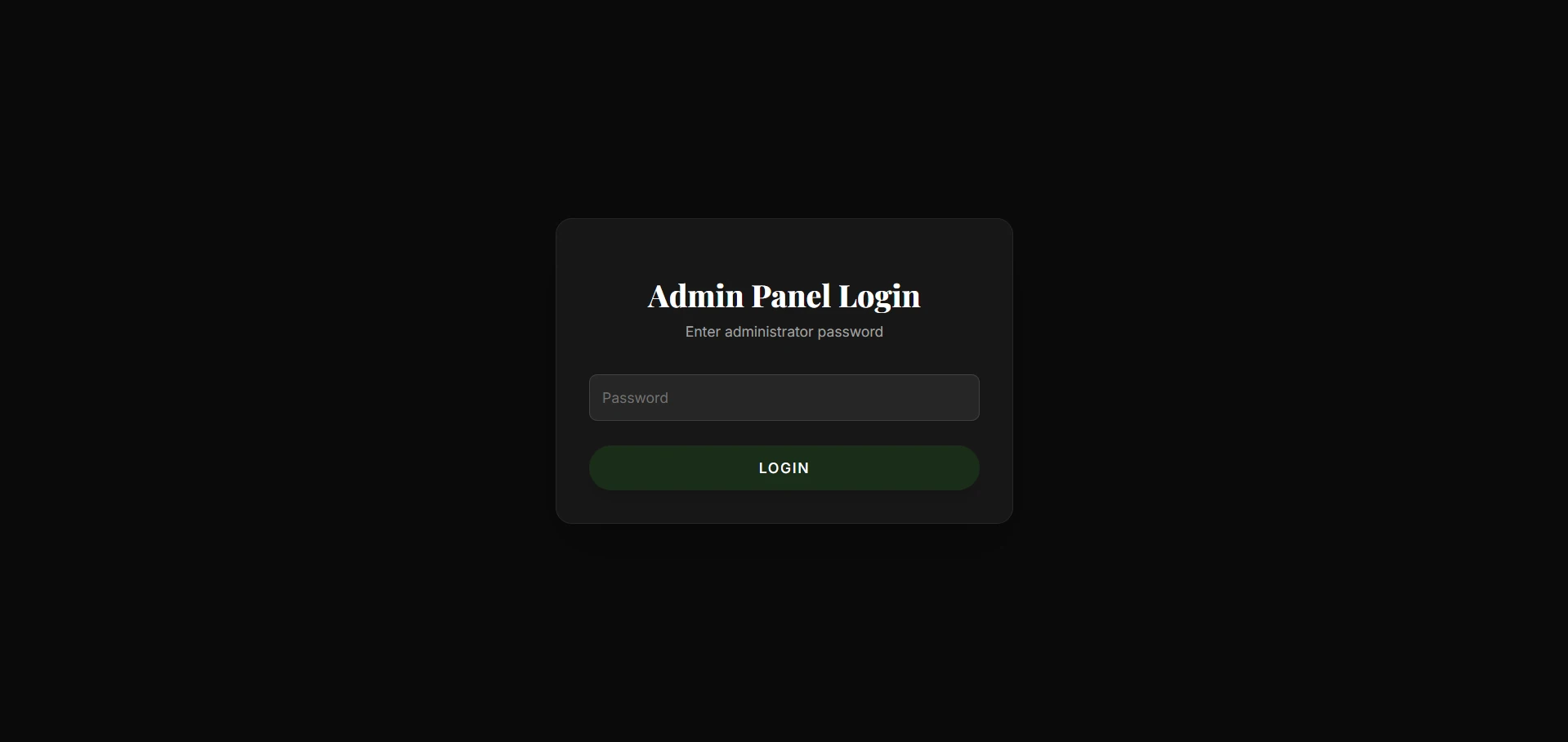
Screenshots restored from the original guide. Provider interfaces may change; use the written instructions and your selected project's variable names if an older screenshot differs. Never share real credentials in screenshots.
Optional transactional email delivery.
RESEND_API_KEYResend API key for order notifications and password reset messages.
EMAIL_FROMVerified sender used when Resend delivery is enabled.
RESEND_API_KEY.EMAIL_FROM to an address on that verified domain, for example Website <no-reply@yourdomain.com>. Copy the value without outer quotes into your hosting environment.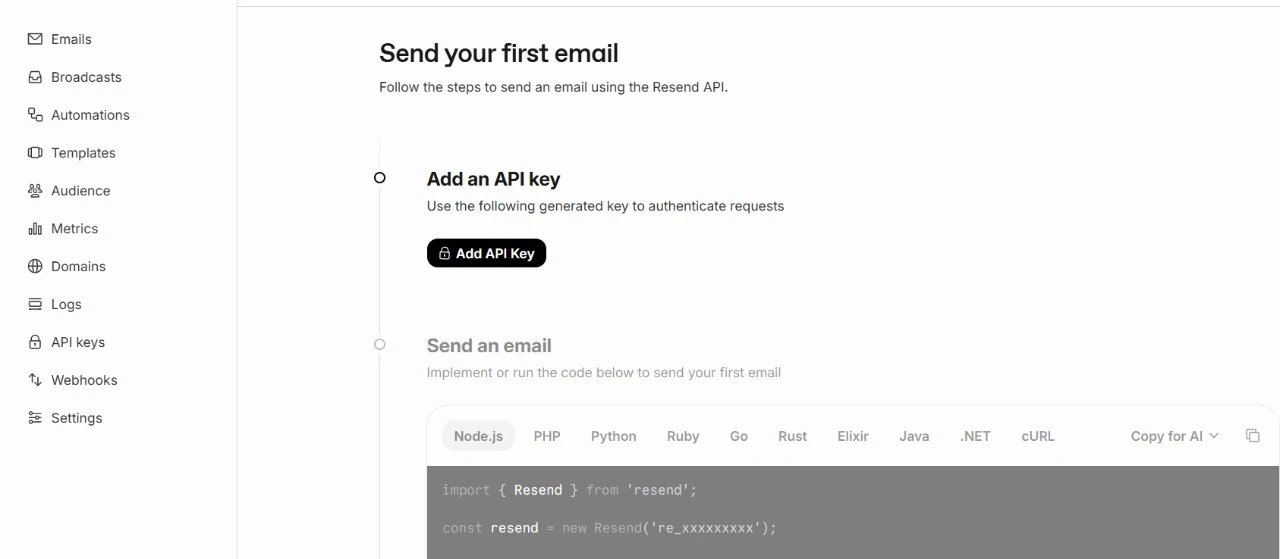
Screenshots restored from the original guide. Provider interfaces may change; use the written instructions and your selected project's variable names if an older screenshot differs. Never share real credentials in screenshots.
Signed payment events and reconciliation.
STRIPE_SECRET_KEYStripe server API key for one test or live mode.
STRIPE_WEBHOOK_SECRETSigning secret for this deployment's exact Stripe webhook destination.
STRIPE_DEPLOYMENT_IDStable unique marker isolating this site when a Stripe account serves multiple deployments.
CRON_SECRETBearer secret required by the included order-reconciliation cron route.
STRIPE_PUBLIC_KEYPublishable Stripe key name used by some custom projects. Not a secret key; use the exact public-key variable consumed by your integration, not every naming variant.
NEXT_PUBLIC_STRIPE_PUBLISHABLE_KEYPublic Stripe key for custom client-side integrations that explicitly require it. Not required by the four released template manifests.
STRIPE_SECRET_KEY. Copy a publishable key only if your project's client-side Stripe integration requires one; the four-template catalog is not a universal contract for custom sites.STRIPE_DEPLOYMENT_ID for this site and environment. Do not share it between Preview and Production. Configure the separate CRON_SECRET for the reconciliation job.For a custom project, use its webhook handler and delivery instructions as the authority. The following lists are the released template examples, not a required combined subscription.
E-commerce: subscribe to all these events
checkout.session.completedpayment_intent.succeededpayment_intent.payment_failedcheckout.session.expiredrefund.createdrefund.updatedTaxi: subscribe to all these events
checkout.session.completedcheckout.session.async_payment_succeededcheckout.session.expiredcheckout.session.async_payment_failedpayment_intent.succeededpayment_intent.payment_failedcharge.refunded/api/stripe/webhooks. Custom projects may have a different route: use their documented path instead of blindly copying this template example.The hostname is preserved, including www. Use your deployed HTTPS origin for Stripe Dashboard delivery.
whsec_… value into STRIPE_WEBHOOK_SECRET for that exact deployment and redeploy. A local Stripe CLI signing secret is different from a Dashboard destination secret.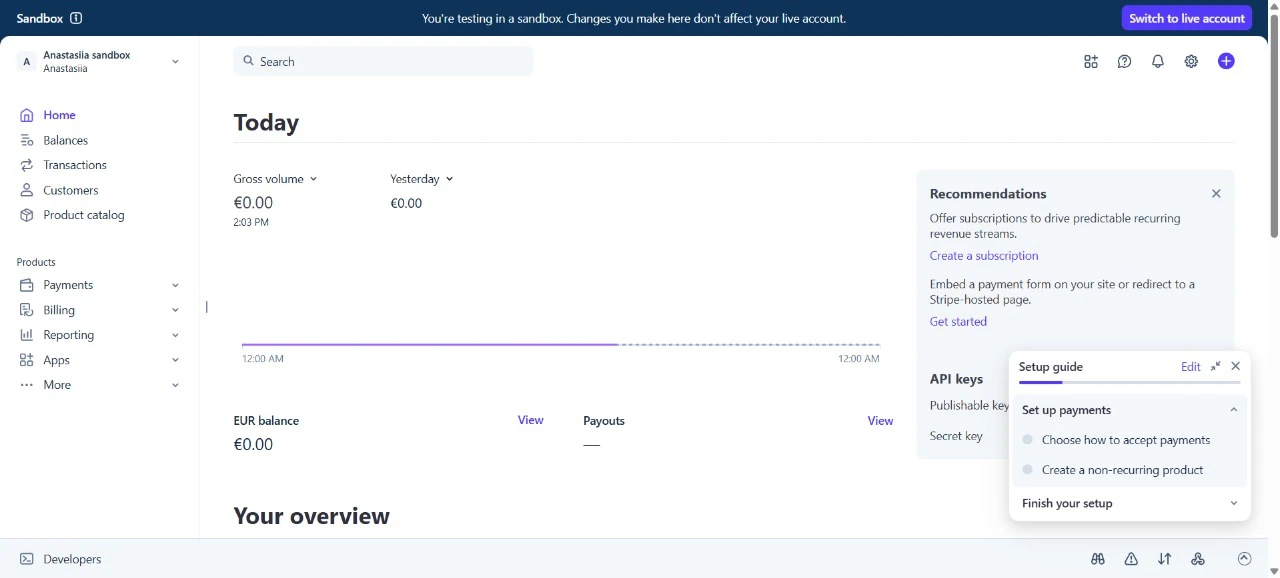
Screenshots restored from the original guide. Provider interfaces may change; use the written instructions and your selected project's variable names if an older screenshot differs. Never share real credentials in screenshots.
Template-specific image upload architecture.
NEXT_PUBLIC_CLOUDINARY_CLOUD_NAMEPublic Cloudinary cloud name used by image components and the unsigned upload widget.
NEXT_PUBLIC_CLOUDINARY_UPLOAD_PRESETUnsigned upload preset restricted for buyer-managed CMS uploads.
CLOUDINARY_CLOUD_NAMECloudinary cloud name used by the server-side admin upload route.
CLOUDINARY_API_KEYPrivate Cloudinary API key used only by the server-side admin upload route.
CLOUDINARY_API_SECRETPrivate Cloudinary API secret used only by the server-side admin upload route.
CLOUDINARY_URLServer-only Cloudinary connection URL, only for custom integrations that consume this combined credential.
CLOUDINARY_CLOUD_NAME, CLOUDINARY_API_KEY, and CLOUDINARY_API_SECRET. Never prefix the API secret with NEXT_PUBLIC_. Some custom integrations consume CLOUDINARY_URL instead; use it only if your project reads that variable.NEXT_PUBLIC_CLOUDINARY_CLOUD_NAME. These templates do not need Cloudinary's private API key or secret for their widget.NEXT_PUBLIC_CLOUDINARY_UPLOAD_PRESET. An unsigned preset is public: its upload restrictions matter.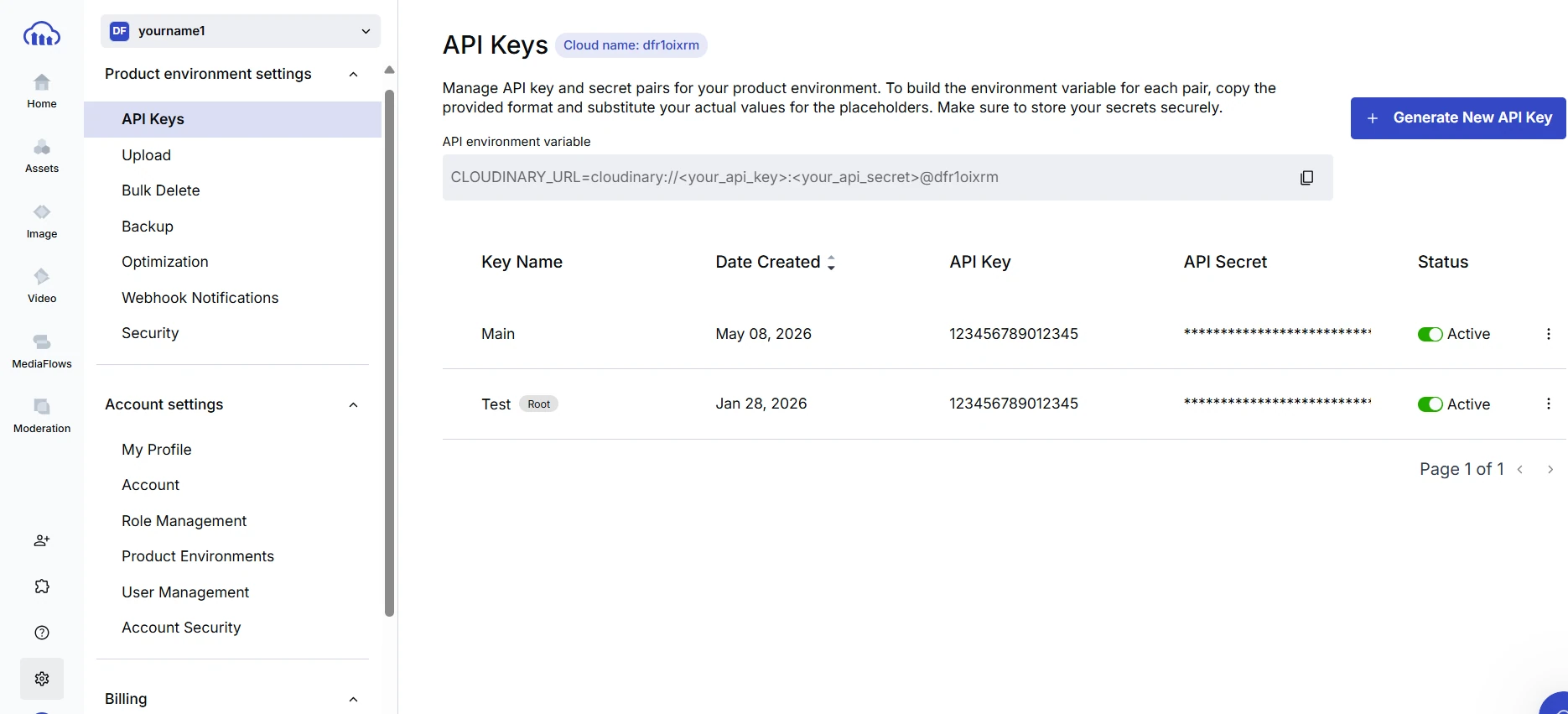
Screenshots restored from the original guide. Provider interfaces may change; use the written instructions and your selected project's variable names if an older screenshot differs. Never share real credentials in screenshots.
Optional distributed serverless rate limiting.
UPSTASH_REDIS_REST_URLOptional Upstash REST URL; configure with the token or provide equivalent external WAF protection.
UPSTASH_REDIS_REST_TOKENOptional Upstash REST token paired with UPSTASH_REDIS_REST_URL.
UPSTASH_REDIS_REST_URL and the REST token into UPSTASH_REDIS_REST_TOKEN. Use REST credentials, not a Redis TCP connection URL or a read-only token.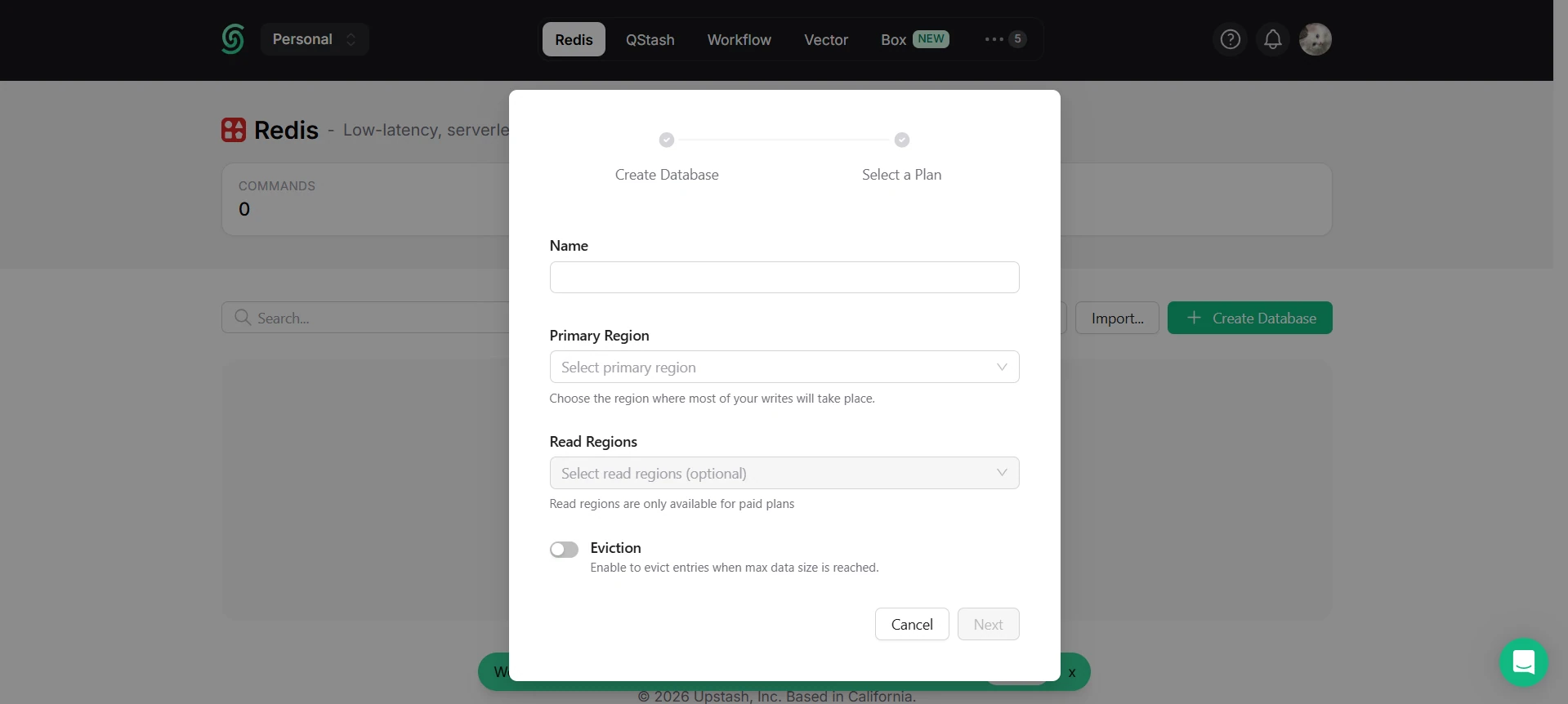
Screenshots restored from the original guide. Provider interfaces may change; use the written instructions and your selected project's variable names if an older screenshot differs. Never share real credentials in screenshots.
Separate browser and server credentials for Taxi.
NEXT_PUBLIC_GOOGLE_MAPS_API_KEYBrowser-restricted Google Maps key used by the booking interface.
GOOGLE_MAPS_SERVER_API_KEYSeparate server-restricted key with the Routes API enabled; never expose it to the browser.
NEXT_PUBLIC_GOOGLE_MAPS_API_KEY.https://yourdomain.com/* and, for a development key, http://localhost:3000/*. Under API restrictions, allow only the browser APIs your app uses.GOOGLE_MAPS_SERVER_API_KEY. Restrict its APIs to Routes API for Taxi. Do not apply browser-referrer restrictions to this server key. Apply IP restrictions only when your server has known stable egress IPs.Optional overrides, analytics, and presentation defaults.
NEXT_PUBLIC_STORE_NAMEOptional store-name fallback when CMS settings are unavailable.
STORE_SUPPORT_EMAILOptional support-address fallback used in order emails.
NEXT_PUBLIC_SUPPORT_EMAILOptional support address displayed on the license-required page.
NEXT_PUBLIC_CURRENCY_SYMBOLOptional email and UI currency-symbol fallback; payment currency remains server controlled.
NEXT_PUBLIC_GA_IDOptional Google Analytics measurement ID.
Our support team can help you deploy your website or even do it for you.
Include your project or template name and a redacted error message. Never send passwords, API keys, or other secret values.
Social Login
Optional Google OAuth credentials.
GOOGLE_IDGoogle OAuth client ID; credentials authentication remains available without it.
GOOGLE_SECRETGoogle OAuth client secret paired with GOOGLE_ID.
GITHUB_IDGitHub OAuth Client ID, only when the custom project implements GitHub sign-in.
GITHUB_SECRETGitHub OAuth Client Secret. This is not a GitHub CMS personal access token.
GOOGLE_CLIENT_IDAlternative Google OAuth Client ID name used by some custom sites. E-commerce and Taxi use GOOGLE_ID instead; do not add both unless your project requires both.
View setup instructions
GitHub OAuth — only for custom sites that implement it
https://yourdomain.com/api/auth/callback/github.GITHUB_IDandGITHUB_SECRETonly if these are the names your project consumes.Google OAuth
https://yourdomain.com/api/auth/callback/google. Addhttp://localhost:3000/api/auth/callback/googleto a development client when testing locally. Do not silently add or remove www.GOOGLE_IDand Client Secret intoGOOGLE_SECRETfor E-commerce and Taxi. A custom project may instead consumeGOOGLE_CLIENT_ID; use its exact documented names, not both by default.